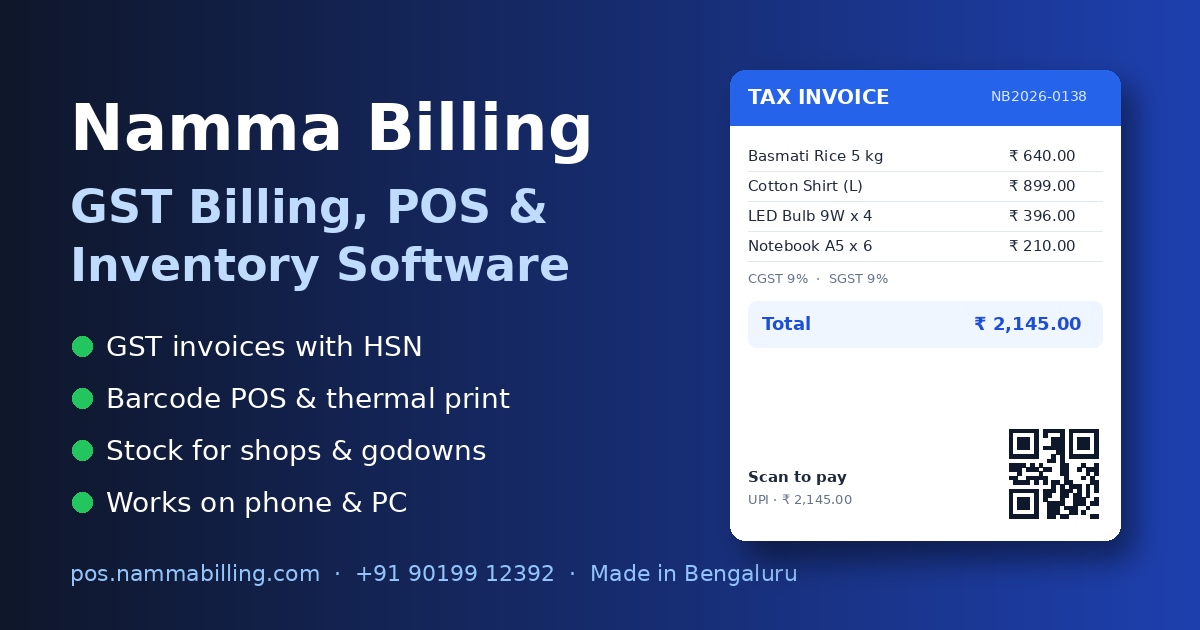
Most customers now pay by UPI. A static shop QR code means the customer types the amount – and sometimes types it wrong. A QR code printed on the bill can carry the exact amount.
How a bill UPI QR works
The QR on the bill contains your UPI ID, your shop name, the amount still to be paid and the bill number as a note. When the customer scans it with GPay, PhonePe, Paytm or any UPI app, the app opens with everything filled in – they only enter their PIN.
Benefits
- No wrong amounts and no "how much was it?" at the counter
- The bill number in the payment note makes matching payments easy
- Customers who take credit can pay later by scanning the bill
- Works on A4 invoices and thermal receipts
Set it up in Namma Billing
- Go to Settings › Invoice settings › your invoice layout
- Tick UPI scan-to-pay QR and enter your UPI ID (for example shopname@okbank)
- Save – every new bill shows the QR with the amount due. Fully paid bills do not show it.
You can also add a second QR for your Google review page, website or WhatsApp. See GST billing software.
Tips for smooth UPI collection
- Use a UPI ID linked to your current account so payments land in the business account
- Check the payment on your UPI app or sound box before handing over goods
- Record the payment method as UPI on the bill – your day-end report then shows cash and UPI separately
- For credit customers, print or share the bill with the QR – they can scan and pay the due amount later
- Keep your static shop QR as a backup for small walk-in sales
Is it safe?
The QR only contains your UPI ID, name, amount and note – the same details as your shop QR. The customer approves the payment in their own UPI app with their PIN; no card or bank details are stored in the bill.
Try it in your shop
Namma Billing does all of this for you. Start a free trial or call / WhatsApp +91 9019912392 for a demo.